Short Introduction to the Command Line
(Note: this tutorial is only valid if you work on MacOS or Linux. If you are on Windows, you may skip to the next chapter)
Development for server programming requires to start local servers in specific directories. The actions required to run these servers may vary depending on the OS and usually involves the use of the command line.
Notion of terminal and shell
To start the server with the expected options, we will use some command lines. Command lines is a general way to execute and pass arguments to programs. Command lines are usually written in a terminal emulator (or simply called terminal) allowing to interactively enter and execute the written commands (similar to lines of codes).
- Call a terminal from the general menu.
Every line entered in the terminal is interpreted by a command interpretor (also called shell) that will try to execute the commands. The shell commands can be viewed as a programming language in itself. There exists several shells, the most common one on Linux system is called bash. (Mac computers also have access to the bash shell. Windows however uses a different syntax).
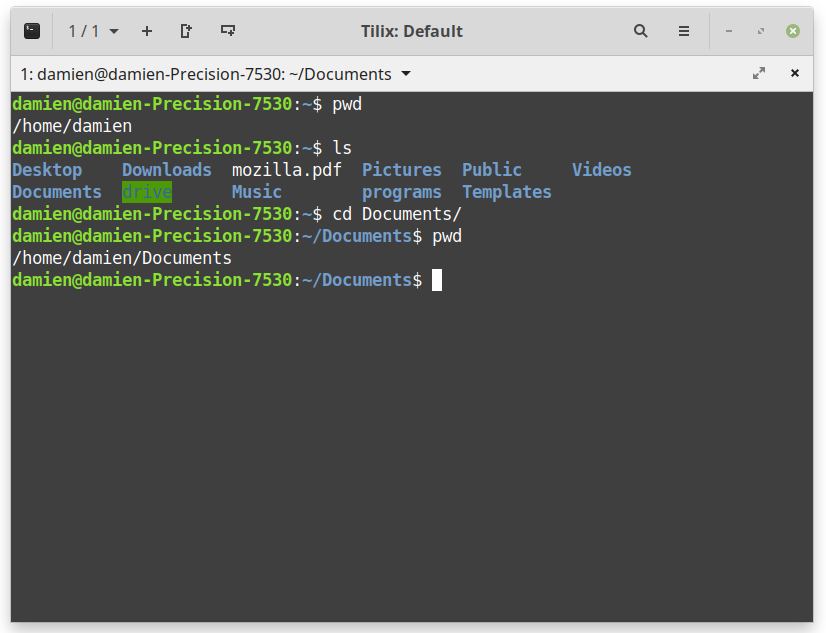
Example of terminal
Current working directory
The command line entered in a terminal is locally executed in the context of a local directory. By default, the terminal is open in the root of the current user directory called home.
- Type the command `pwd` (Print Working Directory) to print the full path of the current working directory from the absolute root.
- Type the command `ls` (LiSt) to print the list of files and directories contained in the current working directory.
- The command `cd` (Change Directory) allows to change the current working directory.
-
- `cd dirName` change the current working directory to dirName (adapt dirName to your case).
Note on directory structure in Linux
- The root directory on the system is called `/`
- `/` contains several directories reserved by the system such as
-
- `bin/` contains basic binary executable programs -- ex. ls, pwd are programs stored in /bin
- `usr/` contains general programs and libraries installed on the system
- `tmp/` stores temporary log data that may be removed at each reboot
- `root/` directory reserved to the administration of the OS
- `home/` directory storing local user data.
Special symbols for specific directory
- `~` is a short name referring to the user home directory.
- `.` is a short name referring to the current working directory
- `..` is a short name referring to the parent of the current working directory
Examples
- `cd Documents` : change the local working directory to `Documents` (if accessible from the local working directory)
- `cd ..` : change the local working directory to the parent directory (goes up in the directory hierarchy)
- `cd ~` : shorthand to go to the home directory
Rem.
- You can use the tabulation key to automatically complete the name of the directory that you started to type. (ex. `cd Docu`, followed by `tab` should automatically complete to `cd Documents` (if `Documents` is accessible))
- Directories can be chained - ex. `cd CSE104/exercise1/` -- in this case `exercise1` is supposed to be in the `CSE104` directory.
Creating/removing directory
- `mkdir` (MaKe DIRectory) allows to create a new directory
- `rm` (ReMove) allows to remove a file (warning: rm doesn't send files to the trash but definitely suppress them).
-
- `rm -r` allows to remove a directory.
ex./
mkdir my_directory
ls
cd my_directory
pwd
mkdir subdirectory
ls
cd subdirectory
pwd
cd ..
pwd
cd ..
ls
rm -r my_directory
ls
Manual of a command
Each Linux command can usually be called using multiple options. These options are documented in the so called man pages (=Manual).
Example to read the documentation about the command `ls`
man ls