Install and compile
A CGP project is a single folder that contains both your code and the library. You compile it as one program: there is no library to install system-wide, only a compiler, CMake (or make) and, on Linux and macOS, GLFW.
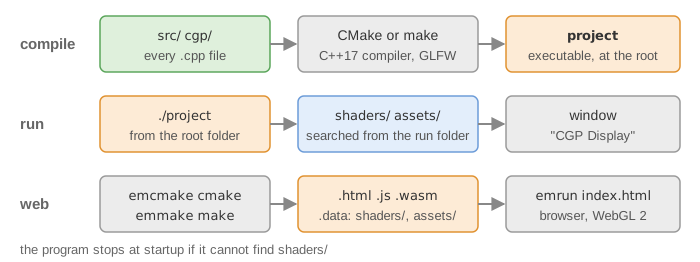
What is in the folder
CMakeLists.txt        CMake project (all platforms, and Emscripten)
CMakePresets.json     CMake presets: debug, release, relwithdebinfo
Makefile              Alternative to CMake on Linux and macOS
vscode.code-workspace VS Code workspace (CMake Tools, presets, debugger)
cgp/                  The CGP library, with its third-party code (GLAD, GLFW, ImGui, ...)
shaders/              Default shaders (mesh/ and single_color/), loaded at startup
src/                  Your program: main.cpp, application, environment, scene
scripts/              visual-studio-generate.bat and emscripten/ (web build)
Every .cpp file found under src/ and cgp/ is compiled: you can add your own files in
src/ without editing the build files (with CMake, re-run the configure step so that the new
files are picked up).
Requirements
- A C++17 compiler: GCC or Clang on Linux and macOS, Visual Studio (with the "Desktop development with C++" module) on Windows. Both CMakeLists.txt and the Makefile compile in C++17.
- A graphics card and driver supporting OpenGL 3.3 or more (the default target; macOS supports it natively).
- CMake 3.16 or more. The presets use the Ninja generator, so install Ninja if you want to use them.
- On Linux and macOS: GLFW (the window library) and pkg-config, which is how both
CMake and the Makefile find GLFW. On Windows, a precompiled GLFW is provided in
cgp/third_party/glfw/windows/and nothing else is needed.
Installing the tools:
# Linux (Debian / Ubuntu)
sudo apt-get update
sudo apt-get install build-essential pkg-config cmake libglfw3-dev
# optional, for the CMake presets
sudo apt-get install ninja-build

# macOS (with Homebrew, https://brew.sh)
brew install cmake pkg-config ninja glfw
On Windows, install CMake (check "Add CMake to the system PATH" during the installation) and Visual Studio Community with the module "Desktop development with C++". Visual Studio Code is a different program and has no compiler.
Get the code
Clone the repository, or copy a project folder you were given (for instance the code of a lab session), and work inside it:
git clone https://github.com/drohmer/cgp-2027.git
cd cgp-2027
Avoid spaces and accented characters in the path of the folder: some tools fail on them, in particular on Windows.
Compile on Linux and macOS
Pick one of the three ways below. All of them produce an executable named project. If
unsure: the presets if Ninja is installed (the macOS command above installs it), otherwise
the Makefile (make -j8, then ./project). The first build compiles the whole library, from
a few seconds to about a minute depending on the computer; later builds only recompile the
files you changed.
CMake with presets (recommended)
cmake --preset release           # configure, in build/release/
cmake --build --preset release   # compile
./project                        # run, from the root folder
The available presets are debug (full debug symbols), release (optimized) and
relwithdebinfo (optimized, with debug information). Each preset uses its own folder
build/<preset>/, and the presets place the executable at the root of the project, next to
shaders/.
CMake without presets
This works without Ninja, with the default generator (Makefiles):
mkdir build
cd build
cmake ..
make             # or: make -j8
./project        # run from build/: the program finds ../shaders/ by itself
Makefile only
The Makefile at the root does not need CMake. It finds GLFW with pkg-config, puts the object
files in build/ and the executable at the root:
make -j8         # compile
./project        # run
make run         # compile if needed, then run
make clean       # remove build/, the executable and imgui.ini
VS Code
Open vscode.code-workspace with VS Code. It is set up for the CMake Tools extension with the
presets (the debug preset by default) and recommends the extensions CMake Tools, C/C++ and
CodeLLDB; the launch configuration runs the program from the root folder.
macOS: if GLFW is not found
The library ships a precompiled GLFW for macOS (cgp/third_party/glfw/macos/). To use it
instead of the Homebrew one, turn on the CMake option MACOS_GLFW_PRECOMPILED:
cmake --preset release -DMACOS_GLFW_PRECOMPILED=ON
(or change OFF into ON on the line option(MACOS_GLFW_PRECOMPILED ...) of
CMakeLists.txt). If macOS refuses to load the library, open
cgp/third_party/glfw/macos/lib/libglfw.3.dylib once from the Finder (right-click, Open), then
compile again.
Compile on Windows with Visual Studio
- Run the script
scripts/visual-studio-generate.bat(double-click it). It creates the folderbuild/and runs CMake in it, which generates a Visual Studio solution. - Open the solution file
build/project.sln(or project.slnx with recent versions of Visual Studio). - Compile and run with the "Local Windows Debugger" button. project is already the startup project, the executable is written at the root of the folder and the debugger runs it from there, so the shaders are found.
Re-run the script whenever you add or remove a source file. The GLFW library provided for
Visual Studio (cgp/third_party/glfw/windows/lib-visual/) is built for 64-bit Windows; a
MinGW version (lib-mingw-w64/) is used when compiling with MinGW instead.
Run the program from the right folder
At startup the program looks for the folder shaders/ (the default shaders are loaded from
there, as well as your own files in assets/ if you have some). It tries the current folder,
then the parent folders up to four levels, and the folder of the executable. So run the program
either from the root of the project or from a build folder inside it.
When this fails, the program stops at once with:
[Parameters ERROR] The program failed to locate the ressource directory designed as: shaders/
Change the working directory (in the terminal, or in the run settings of your IDE) to the root of the project.
A successful start prints the window size, the OpenGL information (version, graphics card), the camera controls, and opens a window titled "CGP Display" showing a red sphere, a rotating green cylinder and the coordinate frame. Close the window (or press Ctrl+C in the terminal) to stop the program.
Choose the OpenGL version
CGP targets OpenGL 3.3 by default, which works everywhere, including macOS and the web.
To use OpenGL 4.1, 4.3 or 4.6 (compute shaders, debug messages of the driver...), replace the
compile definition CGP_OPENGL_3_3 by CGP_OPENGL_4_3 (for instance) in CMakeLists.txt or
the Makefile, then rebuild the whole project. Details and examples:
Use a newer version of OpenGL.
Build for the web (Emscripten)
A CGP program can be compiled to WebAssembly and run in a browser (WebGL 2). Install and activate the Emscripten SDK first, so that emcc, emcmake, emmake and emrun are available. Then, either with CMake:
mkdir build_em
cd build_em
emcmake cmake ..
emmake make
emrun index.html
or with the dedicated Makefile, from the root of the project:
emmake make -f scripts/emscripten/Makefile_emscripten
emrun index.html
(python3 scripts/emscripten/linux_compile_emscripten.py runs the same Makefile after a
clean.) The build produces project.html, project.js, project.wasm and project.data
(the packed shaders/ and assets/ folders), and copies the page
scripts/emscripten/emscripten_template.html as index.html. The CMake build packs assets/
only if it exists and is not empty; the Makefile always packs it, so create an empty assets/
folder if your project has none. The page must be served by a web server (emrun does it),
not opened as a local file.
Troubleshooting
- glfw3 not found via pkg-config (Makefile) or a CMake error on glfw3 / PkgConfig: install GLFW and pkg-config (see above). On macOS, you can also use the precompiled GLFW.
- CMake cannot find Ninja when using a preset: install Ninja, or use CMake without presets.
- "failed to locate the ressource directory" at startup: the program is not run from the project folder; see Run the program from the right folder.
- A new
.cppfile is not compiled (link error on its functions): re-run the CMake configure step, or the Visual Studio script. - The window does not open, or the OpenGL context cannot be created: update the graphics driver and check that it supports OpenGL 3.3. On a Linux virtual machine or a remote session, OpenGL may not be available.
- "Error: No monitor found" right after "GLFW initialized": the program has no access to a display (remote session over SSH, process started without a graphical session). Run it from the desktop session.
- The Visual Studio script fails: read the CMake error it prints; check that CMake is in the PATH and that the path of the folder has no spaces or accents.
- A CGP error stops the program: by default the build defines
CGP_ERROR_EXCEPTION, so CGP errors are thrown as C++ exceptions, with a message; run in a debugger to see where. Assertions can be disabled by uncommentingCGP_NO_DEBUGin CMakeLists.txt or the Makefile (the web build always disables them).
Errors printed while the program runs (missing file, shader, index out of bounds...) are in Troubleshooting and error messages.
Next: Your first scene.