2/10
2. Events
Event programming principle
Classical programming, consists usually to run a set of functions/procedure one after the other in a predictable way (procedural programming).
Let us consider that a program should interact with a user able for instance to click on a button, or more generally, to click on a specific element, leading to a response of the program. The instant and number of time that the user is clicking on the element are arbitrary and non predictable.
Event programming approach is usually used to handle these interaction.
Event programming works with two elements: a listener, and a action function.
A listener is a function that is waiting a user event to take place. For instance, the fact that a click occurs on a specific element, or the displacement of the mouse (In more details, a listener may be implemented as a thread waiting a specific signal).
When the event takes place, the listener is activated and run a response action function. This action function should be defined by the user is order to adapt the behavior of the program to the event. This function is also called a callback function (a function, which is called by another one: here the listener).
Handling events in JavaScript
Let us consider the following HTML and JavaScript code
HTML
<h1>Click on me!</h1>JavaScript
const title = document.querySelector("h1");
title.addEventListener('click',actionClicked);

function actionClicked(event) {
  console.log('clicked');
}
Explanation of the line title.addEventListener('click',actionClicked);
-
addEventListener is a JavaScript function associating a listener and an action function to an element.
-
In this case, the element
titleis associated to a listener that will wait an event of typeclick -
When the
clickevent is received by the listener, the functionactionClickedis called.
Run the associated code in your browser. Observes the console when you click several time on the title.
Rem.
-
Javascript can handle several types of event.
-
At the opposite of addEventListener, removeEventListener can remove existing listener associated to an element.
-
You can find the syntax
title.onclick = actionClickedwhich is also valid. However, only one event type can be associated to the element using this syntax, while the use of addEventListener can handle multiple event types if needed.
DOM modification on events
It is possible to modify the DOM in response to events, for instance in adding new elements.
-
Consider the following HTML and JavaScript code
HTML
<article>
  <h1>Click on me!</h1>
</article>
JavaScript
const title = document.querySelector('h1');
title.addEventListener('click',actionClicked);

function actionClicked(event) {
  // Create a new element
  const newElement = document.createElement('p');
  newElement.textContent = 'Clicked !';

  // Add new element in the DOM
  const article = document.querySelector('article');
  article.appendChild(newElement);
}
Note that new elements are added every time the user click on the title.
CSS modification
Another possibility of interaction consists in modifying the CSS appearance of the element.
-
Consider this example switching between pre-existing CSS classes
HTML
<h1>Click on me!</h1>
<div class="square"></div>
CSS
div {
  width: 200px;
  height: 200px;
}

.square {
  background-color: yellow;
}

.circle {
  background-color: red;
  border-radius: 50%;
}
JavaScript
const title = document.querySelector('h1');
title.addEventListener('click',actionClicked);

function actionClicked(event) {
  const element = document.querySelector('div');
  element.classList.remove("square");
  element.classList.add("circle");
}
And observe the behavior when clicking on the title.
-
Another option would be to describe all the possibilities in the HTML document (both square and circle), but only drawing one or the other dynamically.
<h1>Click on me!</h1>

<div class="square"></div>
<div class="circle invisible"></div>
div {
width: 200px;
height: 200px;
}
.square {
background-color: yellow;
}
.circle {
background-color: red;
border-radius: 50%;
}
.invisible {
display: none;
}const title = document.querySelector('h1');
title.addEventListener('click',actionClicked);
function actionClicked(event) {
const circle = document.querySelector('.circle');
const square = document.querySelector('.square');
square.classList.add("invisible");
circle.classList.remove("invisible");
}Exercice


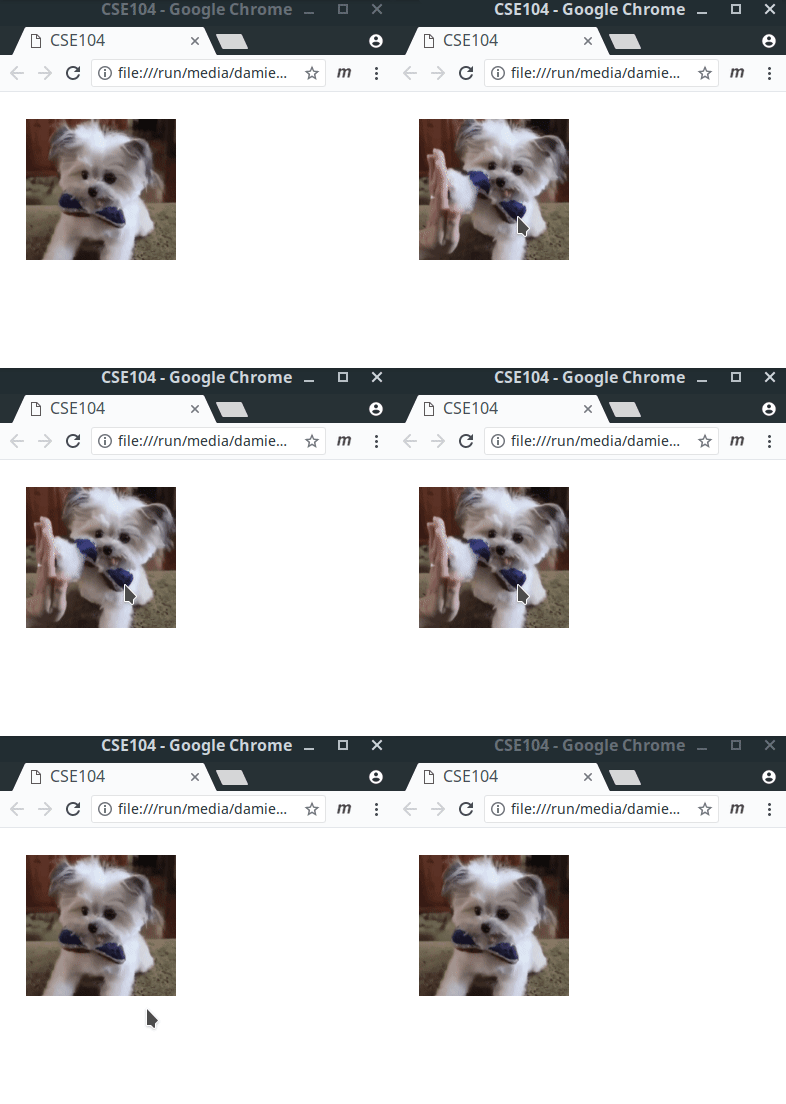
Hints in JavaScript.
-
let x=0;initialize a variable named x that can be re-assigned. -
a%breturn the remainder of the integer division of a by b (modulus operator) -
Conditionnal in JavaScript can be coded using standard
ifstatements
if( condition ) {
  action ...
}
else {
  other action ...
}