1/11
1. Access to HTML DOM
Basic code
-
Consider the html webpage containing this element
<div class="hello_world"></div>This html page would lead to an empty page when viewed from the browser.
-
Now create a file called
script.js. -
Add the following JavaScript code in this file
const element = document.querySelector(".hello_world");
element.textContent = "Hello World";-
Finally, add in the header of the html file the following tag.
<script src="script.js" defer></script>-
Reload the webpage in the browser and check that the
Hello Worldis now appearing.
Explanation
Let first check at the JavaScript syntax
const element = document.querySelector(".hello_world");-
documentis a globally accessible variable that contains the DOM of the HTML webpage. -
document.querySelector("X")allows to query inside the DOM an element matching the provided selector. The syntax of the selectorXis similar to CSS. -
const element = document.querySelector(…)defines a variable namedelement.elementreceives the value returned bydocument.querySelector(…). Also,elementis declared asconstwhich means thatelementcannot be re-assigned in the future to another value (note that the data insideelementcan still be modified).
The second line
element.textContent = "Hello World";allows to modify the textual content of the DOM element stored in the variable element.
Finally, in the HTML file, the line
<script src="script.js" defer></script>enable to load the JavaScript file. The defer keyword indicates that the script should run once the HTML DOM element is loaded.
As a result, the HTML code is first parsed by the browser, and the DOM tree is built, before the script in script.js is executed.
Loop
Add the following loop in the JavaScript
for(let k=0; k<20; k++) {
    element.textContent += "Hello World ";
}
Note that it is possible to use JavaScript to automatize tasks such as in using loops to fill and generate content, while this was not possible in pure HTML and CSS description.
Browser console
Let’s consider that your JavaScript code contains a syntax error or bug. This error may result in a complete empty screen that can be hard to debug without extra information.
To help developers to debug and follow the execution of JavaScript code, modern browsers propose an embedded console where information and error can appear, similarly to standard console output in other languages.
-
Modify the first line of your JavaScript code into the following erroneous one
const element = document.querySelectorBUG(".hello_world");-
Observe that the resulting webpage is an empty one, without visible error information.
-
Enter the developer mode of your browser, usually with the shortkey
F12. And selectConsole. -
Observe that the console is now indicating the source of the error, thus helping to debug.
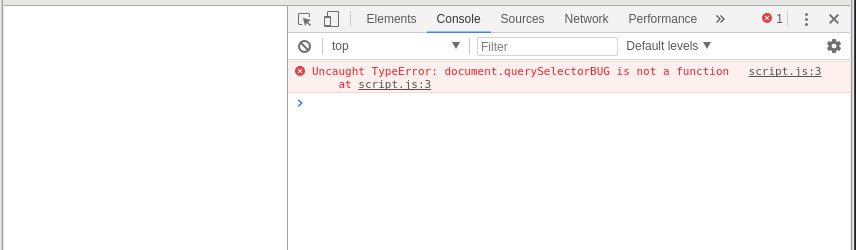
More generally, you can use the command console.log(), which is similar to print statements of other languages.
-
Consider the following code
const element = document.querySelector(".hello_world");
element.textContent = "Hello World";

for(var k=0; k<20; k++) {
	console.log("k=",k);
	element.textContent += "Hello World ";
}

// any variable can be printed in console
console.log(element.textContent);
and observe the printed values in the console.
HTML template
In the future, you may start with the following valid HTML template for webpage with css and JavaScript. Adapt the title, and names of CSS and JavaScript files to your needs.
<!DOCTYPE html>

<html lang="en">

<head>
    <meta charset="utf-8" />
    <meta name="viewport" content="width=device-width, initial-scale=1">
    <link rel="stylesheet" type="text/css" href="style.css">
    <script src="script.js" defer></script>
    <title> My Webpage </title>
</head>

<body> </body>

</html>