Apply a texture image
Goal: cover a ground plane with a checkerboard image, and repeat a wood image on a shape.
Starting point: the default project template (
src/scene.hpp,src/scene.cpp, see Your first scene). It already declares the shapessphereandcylinder, atimer, and the memberscamera_control,environmentandgui: reuse them, do not declare them again. The first comment of each code block says in which file and where its lines go: add means insert them, replace means replace the whole function by the one shown.
How the image is mapped
Each vertex of a mesh has a texture coordinate uv in [0,1]^2: (0,0) is the
bottom-left corner of the image and (1,1) the top-right corner. The default shader reads
the image color at the interpolated uv of each pixel and multiplies it by the vertex
color and by material.color.
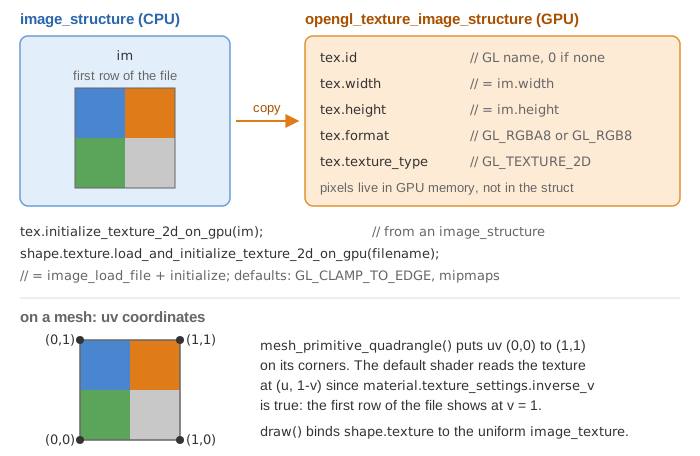
The mesh_primitive_* functions and mesh_load_file_obj already fill uv. For a mesh
built by hand, see Build a mesh by hand.
1. Put the image in the project
The template has no image. Download the two images used on this page:
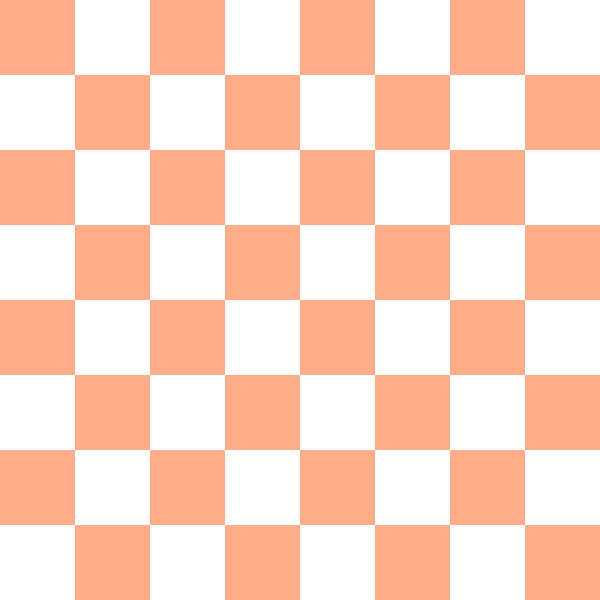
- checkerboard.png (600 x 600, 5 KB)
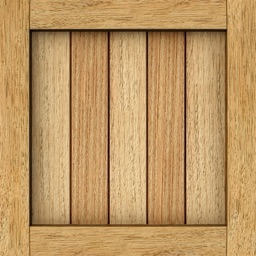
- wood.jpg (256 x 256, 28 KB)
Create a folder assets/ at the root of the project, next to shaders/ and src/, and
save the images in it: assets/checkerboard.png and assets/wood.jpg. Any PNG or JPEG
image works the same way.
2. Declare the drawable
// scene.hpp - add in scene_structure
mesh_drawable ground;
3. Create the shape, then load the texture (once)
// scene.cpp - add at the end of initialize()
float const L = 3.0f;
ground.initialize_data_on_gpu(mesh_primitive_quadrangle(
    {-L,-L,-0.5f}, {L,-L,-0.5f}, {L,L,-0.5f}, {-L,L,-0.5f}));

ground.texture.load_and_initialize_texture_2d_on_gpu(project::path + "assets/checkerboard.png");
The ground is placed at z = -0.5, under the sphere and the cylinder of the template (they are centered at z = 0, and the cylinder goes down to z = -0.5).
load_and_initialize_texture_2d_on_gpu reads the file, sends the pixels to the GPU and
stores the texture handle in ground.texture. Without it, the drawable uses a default
1x1 white texture, which is why untextured shapes show their plain material.color.
4. Draw (every frame)
// scene.cpp - add in display_frame(), before timer.update()
draw(ground, environment);
Nothing else is needed: draw binds the texture automatically. Expected result: a
6 x 6 square under the red sphere and the green cylinder, covered by one copy of the
checkerboard.
Repeat the image: wrap mode
When uv goes beyond [0,1], the wrap mode decides what is displayed. Pass it as the
second (s, along u) and third (t, along v) arguments. This code replaces the code of
step 3 in initialize() (keep steps 2 and 4): a drawable is initialized only once, and
initializing ground a second time prints warnings about non-empty buffers.
// scene.cpp - in initialize(), instead of the code of step 3
// 4 x 4 copies of the image on the ground
float const L = 3.0f;
mesh ground_mesh = mesh_primitive_quadrangle({-L,-L,-0.5f}, {L,-L,-0.5f}, {L,L,-0.5f}, {-L,L,-0.5f});
for (vec2& uv : ground_mesh.uv)
    uv = 4.0f * uv;
ground.initialize_data_on_gpu(ground_mesh);
ground.texture.load_and_initialize_texture_2d_on_gpu(
    project::path + "assets/wood.jpg", GL_REPEAT, GL_REPEAT);
| Wrap mode (OpenGL) | Outside [0,1] |
|---|---|
GL_CLAMP_TO_EDGE (default) |
the border pixels are stretched |
GL_REPEAT |
the image is tiled |
GL_MIRRORED_REPEAT |
tiled, every other copy mirrored |
GL_CLAMP_TO_BORDER |
a constant border color |
![With uv beyond [0,1], GL_REPEAT tiles the image, GL_MIRRORED_REPEAT flips every other copy, and GL_CLAMP_TO_EDGE (the default) stretches the edge texels.](../../assets/reference/opengl_texture_wrap.svg)
Common pitfalls
- The program stops with an error on the file name: the image was not found; check
the path and that
assets/is at the root of the project (next toshaders/), not insrc/or in the build folder. - The shape has a single uniform color: the mesh has no meaningful
uv(all zero), so every pixel reads the same texel. Filluvwhen you build the mesh. - The image is upside down: images are stored top row first, so the default shader
flips v (
material.texture_settings.inverse_vis true by default). Set it to false for a texture that is already flipped, or flip v in the mesh. - The texture looks tinted: the image color is multiplied by
material.color; keep it white{1,1,1}to see the image as is.
Variations
- Same image on several shapes: load it once into an
opengl_texture_image_structurevariable and assign it,cube.texture = wood_texture;(only the GPU handle is copied). - Image computed on the CPU (procedural, simulation):
initialize_texture_2d_on_gputakes agrid_2D<vec3>or animage_structure, andupdatere-sends a modified one at each frame. - Transparent pixels (PNG alpha channel): see Draw transparent objects.
Source: course labs of CSC_43043 (public version, without the solutions): 05_shaders/a_shader_manipulation (checkerboard ground),
07_texture/a_uv_texture (GL_CLAMP_TO_BORDER) and 08_project (palm tree with
GL_REPEAT), scene.cpp.
See also
- How-to: Build a mesh by hand, Load a 3D model from an OBJ file, Change the color of a shape (tint a texture)
- Understand: From CPU to GPU, Shaders and uniforms
- Reference:
opengl_texture_image_structure,mesh_drawable,mesh