Draw transparent objects
Goal: display a grass image and a colored window (PNG images with an alpha channel) in front of each other without visual artifacts.
Starting point: the default project template (
src/scene.hpp,src/scene.cpp, see Your first scene). It already declares the shapessphereandcylinder, atimer, and the memberscamera_control,environmentandgui: reuse them, do not declare them again. The first comment of each code block says in which file and where its lines go: add means insert them, replace means replace the whole function by the one shown.
How transparency works
The default shader outputs an alpha value equal to material.alpha times the alpha of
the texture pixel. This value is ignored unless blending is enabled in OpenGL; then
the new color is mixed with the color already in the image:
color = alpha * new_color + (1 - alpha) * previous_color
The result depends on what was drawn before, hence three rules: draw opaque shapes first, do not write the depth of transparent shapes, and draw transparent shapes from the farthest to the nearest.
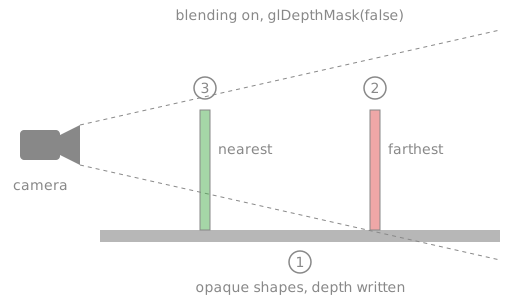
1. Create the transparent shapes (once)
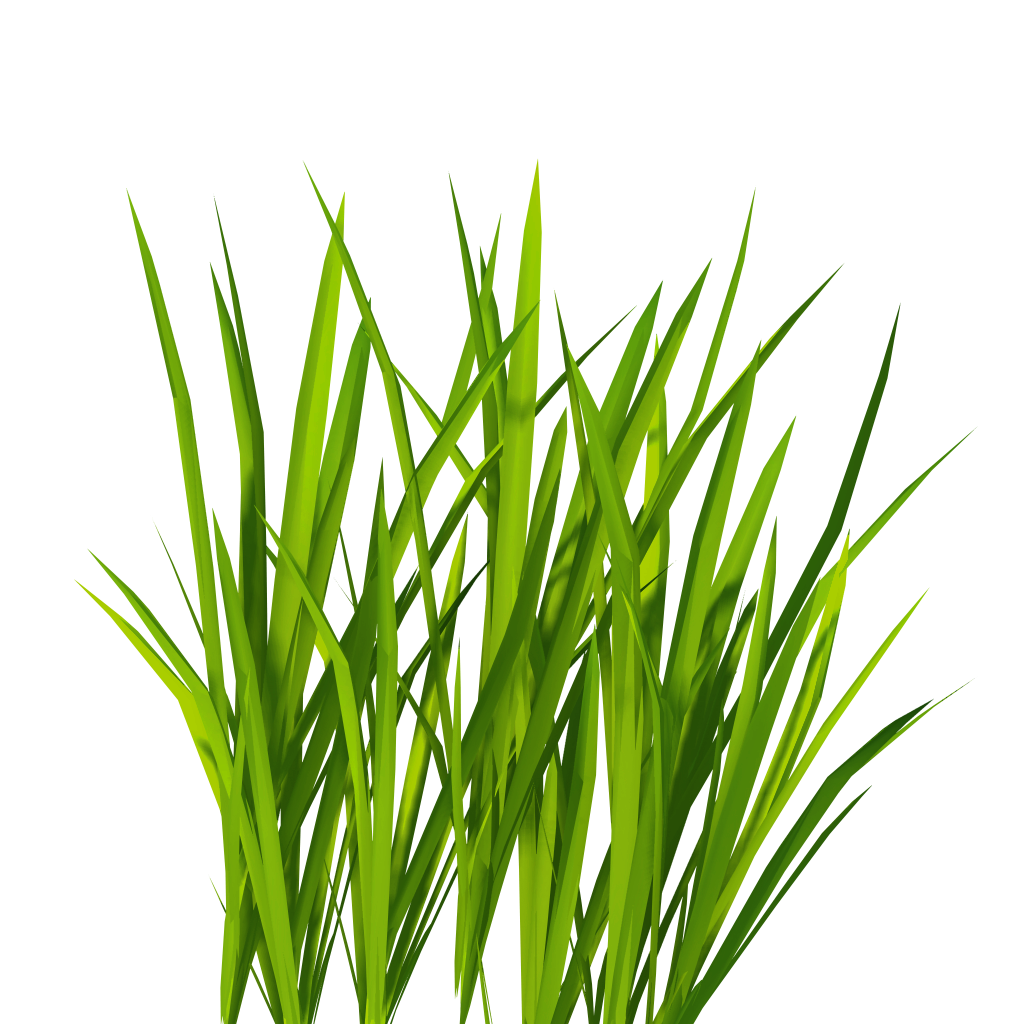
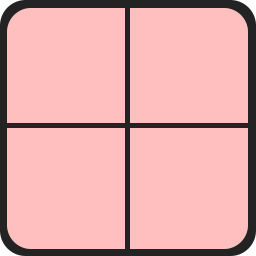
The two images are not in the template: download grass.png
(670 KB) and window_red.png (10 KB), or use your own PNG
images with an alpha channel, saved in a folder assets/ at the root of the project (next
to shaders/) as assets/grass.png and assets/window_red.png.
// scene.hpp - add in scene_structure
mesh_drawable floor;
mesh_drawable quad_1;
mesh_drawable quad_2;
// scene.cpp - add at the end of initialize()
floor.initialize_data_on_gpu(mesh_primitive_quadrangle({-1.5f,-1.5f,-0.5f}, {1.5f,-1.5f,-0.5f}, {1.5f,1.5f,-0.5f}, {-1.5f,1.5f,-0.5f}));

mesh quad_mesh = mesh_primitive_quadrangle({-0.5f,0,0}, {0.5f,0,0}, {0.5f,0,1}, {-0.5f,0,1});
quad_1.initialize_data_on_gpu(quad_mesh);
quad_2.initialize_data_on_gpu(quad_mesh);
quad_1.texture.load_and_initialize_texture_2d_on_gpu(project::path + "assets/grass.png");
quad_2.texture.load_and_initialize_texture_2d_on_gpu(project::path + "assets/window_red.png");
quad_1.model.translation = {0, -0.5f, -0.5f};   // standing on the floor, at z = -0.5
quad_2.model.translation = {0, +0.5f, -0.5f};
For a shape without texture, set material.alpha in [0,1] instead
(1 = opaque, 0 = invisible).
2. Draw opaque shapes, then transparent ones (every frame)
The opaque shapes of the template (global_frame, sphere, cylinder) are drawn first, with the
floor. The whole function:
// scene.cpp - replace display_frame()
void scene_structure::display_frame()
{
    environment.camera_view = camera_control.camera().matrix_view();
    environment.light = camera_control.camera_model.position();

    // 1. all opaque shapes first
    if (gui.display_frame)
        draw(global_frame, environment);
    draw(sphere, environment);
    cylinder.model.rotation = rotation_transform::from_axis_angle({1,0,0}, timer.t);
    draw(cylinder, environment);
    draw(floor, environment);

    glEnable(GL_BLEND);              // 2. enable blending
    glBlendFunc(GL_SRC_ALPHA, GL_ONE_MINUS_SRC_ALPHA);
    glDepthMask(false);              //    keep testing depth, but do not write it

    // 3. sort by depth: draw the farthest quad first
    mat4 const T = camera_projection.matrix() * camera_control.camera_model.matrix_view();
    vec4 const p1 = T * vec4{0, -0.5f, 0, 1};    // centers of the quads
    vec4 const p2 = T * vec4{0, +0.5f, 0, 1};
    if (p1.z / p1.w <= p2.z / p2.w) {            // quad_1 is nearer
        draw(quad_2, environment);
        draw(quad_1, environment);
    } else {
        draw(quad_1, environment);
        draw(quad_2, environment);
    }

    glDepthMask(true);               // 4. restore the default state
    glDisable(GL_BLEND);

    timer.update();
}
glEnable, glBlendFunc and glDepthMask are plain OpenGL calls, available in the scene
code through the CGP header.
Common pitfalls
- Transparent pixels appear black or white: blending is not enabled, or the image has no alpha channel (JPEG never has one: use PNG).
- An object behind a transparent quad disappears: the transparent quad was drawn
before it and wrote its depth. Draw opaque shapes first, and disable depth writing
(
glDepthMask(false)) for transparent ones. - Two transparent shapes flicker or hide each other depending on the view: they are
not sorted. Sort them by depth at every frame (with many objects: compute the depth of
each center,
std::sort, then draw). - The whole scene becomes transparent or loses depth:
glDepthMask(true)andglDisable(GL_BLEND)were not restored after drawing the transparent shapes.
Variations
- Make a quad always face the camera (billboard):
quad_1.model.rotation = camera_control.camera_model.orientation();. - Billboard that stays vertical (trees, grass): rotate around z only, using the right
vector of the camera,
rotation_transform::from_frame_transform({1,0,0}, {0,0,1}, camera_control.camera_model.right(), {0,0,1}). - Fade out an object with time:
quad_1.material.alpha = 1 - t / duration;. - Cut-out without blending (fully opaque or fully transparent pixels, no sorting needed):
discardthe fragment in a custom fragment shader when the alpha is below 0.5.
Source: course labs of CSC_43043 (public version, without the solutions): 07_texture/b_billboards (scene.cpp, display_semiTransparent), and
07_texture/d_animation (fading smoke billboards with material.alpha).
See also
- How-to: Apply a texture image, Spawn objects periodically
- Understand: Camera and matrices
- Reference:
mesh_drawable,rotation_transform,camera_projection_perspective