3/13
1.2. Uploading webpage
Introduction to web hosting
One of the main advantage of web languages is their ability to be directly accessible to anybody as a webpage on the internet. To this end, your html file must be uploaded on a server accessible on the internet (= "A computer aimed at storing webpages and distributing them when a client is requesting it through its specific url".).
"Web hosting" services handle such servers already pre-set and give access to hard drive space whose content is accessible online (more info here).
A web hosting service is already reserved for this class and its content is accessible through this url:
https://cse104.org/
Your objective is to create a directory to your name, and upload your file on it. Your result will be accessible at the address https://cse104.org/Your_Name/ (Your_Name needs to be replaced by your actual name).
Using the administrative panel
To create a directory, or upload file on this hosted space, you need to use the administrative panel proposed by the web hosting service.
In this case, the administrative panel is accessible at the url: https://cpanel.cse104.org/
Fill the log screen with the provided username and password.
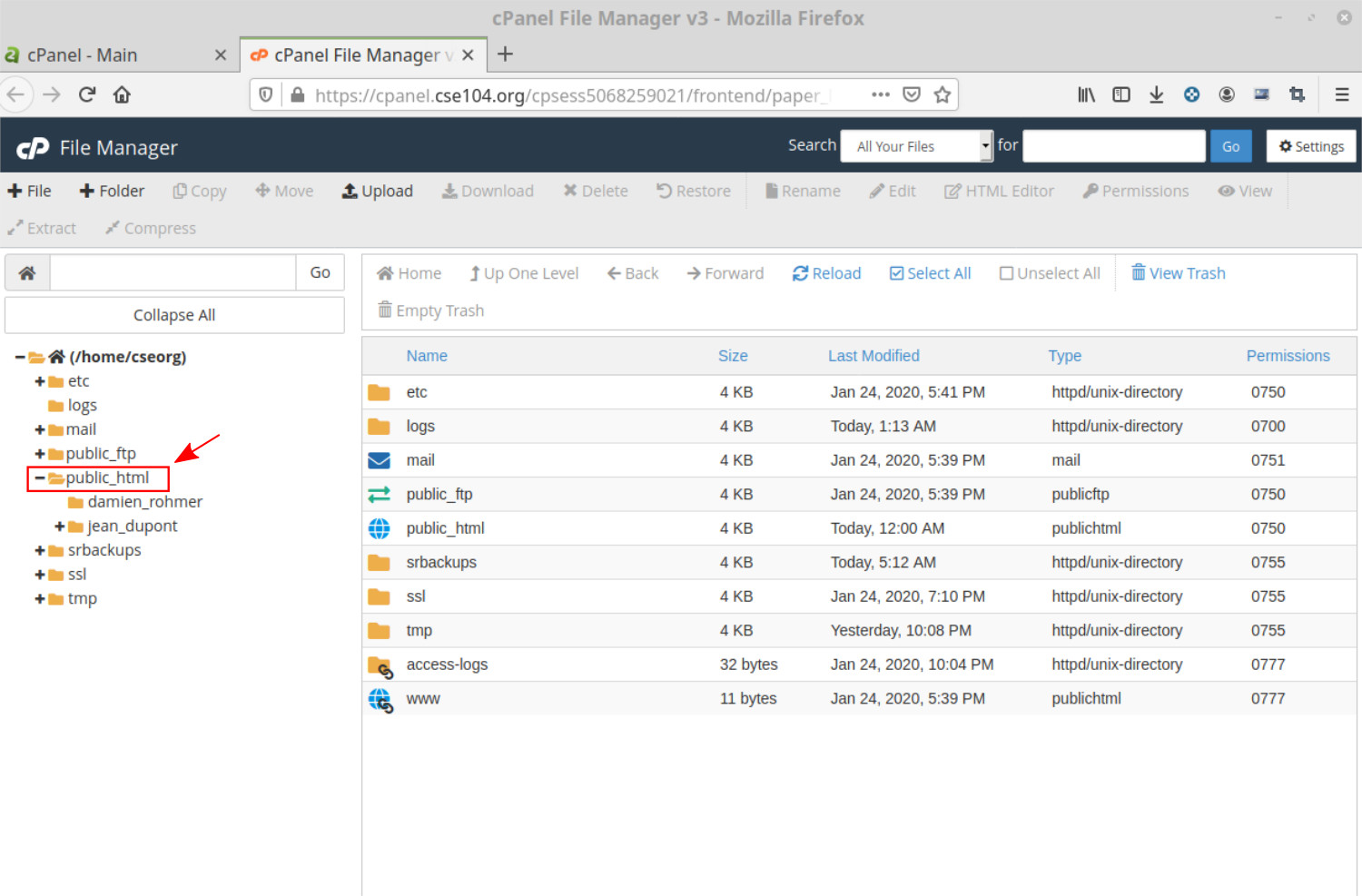
Click on File Manager entry to have a view on the content of the hosted drive. The left part allows to navigate through the directory hierarchy.
-
The directory public_html/ is the root directory whose content is seen when your web browser request the url cpanel.cse104.org. All your modification should be made in this directory.
-
The other directories (etc, logs, mail, etc.) can be use for internal services but are not accessible from the url. You shouldn’t modify any of these.
Now follow these steps to create your own directory and upload your file (see video below)
-
Create a new directory (using the "Folder" entry) in public_html with your name
-
[Optional] Create a subfolder in your new directory with the number or identification of the exercise
-
Upload your html file on your directory
-
Upload entry
-
Drag and drop your html file
-
-
Open your web browser to the address https://cse104.org/ and navigate to your directory (or with the direct address https://cse104.org/Your_Name/exercice_XX/ - to be adapted to your case)
-
Check that your webpage is now online
-
-
Note that you (or anybody else) can now access to your webpage from any devices (other pc, tablet, mobile, etc.). All other students can also see your webpage at the corresponding url.
Use of the shared online space
-
This space is provided at your convenience and dedicated to this CSE104 class. You may create other directories if you want.
-
Feel free to upload any of your results that you want to view on different device, or share with other people. You can handle your files as you wish (add/rename/remove your directory/subdirectories and files)
-
Keep in mind that all students of this class are sharing the same space and use the same account with the same rights.
-
Please be respectful to your colleagues works. In particular, don’t modify or erase their files.
-
Try to keep this drive clean: Upload your files in directories and subdirectories. Don’t "pollute" common space in letting files directly on the root public_html/ folder.
-
Don’t use this space to store or share non-work related files (no movie files sharing for instance). You may upload work files related to other courses if you wish as long as it doesn’t interfere with your files.
-
-
We are all using the same administrative panel with equal rights. This is to your responsibility to not mess-up with the parameters.
-
In particular don’t try to: change the login/password, contact email, install other software, connect via ssh, use the email server, etc.
-
This space is contracted by your teacher from an external company. If something goes wrong, the subscription to this service will be canceled and your files will not be available online anymore.
-
-
Keep in mind that every content uploaded on this directory become publicly available. Don’t use it to set up private team work for instance. All person with the login/passeword will have admin right and be able to see your files.
-
This hosting service will be open and available for the time of the class only. It is not set up as a permanent host for your work. The subscription may be discontinued after the class, and your work erased from the disk. It remains to your responsibility to store your important files to other places.