Your first scene
Once the program compiles and runs (see Install and compile), it shows a red sphere, a green cylinder rotating with time and the coordinate frame, with a small GUI window. This page is a guided tour: find in the code what you see on the screen, then change it, step by step, and check the result after each step. The complete reference of the template (what the application does, who calls which function and in which order) is Scene structure.
Try it. This is the unmodified template, compiled for the web: drag with the mouse to rotate the camera, and untick "Frame" in the GUI to hide the coordinate frame.
1. Where your code goes
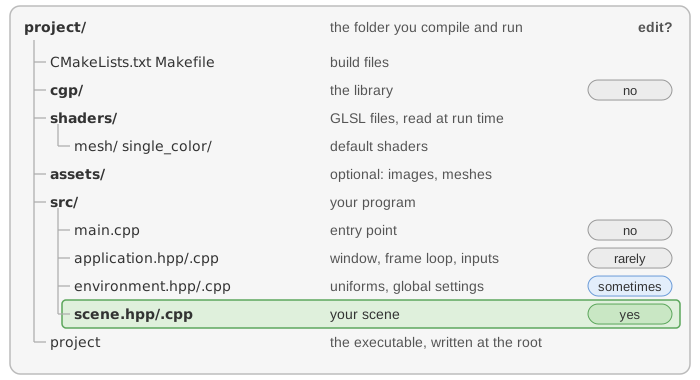
Open the folder src/. You will only edit two files:
src/scene.hpp: the data of your scene, the members ofscene_structure(the shapes, the camera, the values edited in the GUI);src/scene.cpp: its functions:initialize()runs once at startup,display_frame()anddisplay_gui()run at every frame.
The other files (src/main.cpp, src/application.cpp, src/environment.cpp) open the window, run the
loop and call these functions for you: see Scene structure
when you need to know how.
2. Find what you see in the code
| On the screen | In the code |
|---|---|
| the red sphere | initialize(): sphere.initialize_data_on_gpu(...), its position sphere.model.translation, its color sphere.material.color |
| the green cylinder, rotating | display_frame(): cylinder.model.rotation is recomputed from the time timer.t at every frame |
| the coordinate frame and the "Frame" checkbox | display_gui(): ImGui::Checkbox("Frame", ...); display_frame() draws global_frame only when it is ticked |
| the camera that turns when you drag | the callbacks mouse_move_event()... forward the mouse to camera_control (all the controls) |
| the white background | environment.background_color, white by default |
Created once. In initialize(), a shape is built on the CPU (a mesh),
copied to the GPU once, then placed and colored:
// scene.cpp - in initialize() (already in the template)
sphere.initialize_data_on_gpu(mesh_primitive_sphere(0.25f));
sphere.model.translation = {-0.5f, 0.75f, 0.0f};
sphere.material.color = {1.0f, 0.0f, 0.0f};
Drawn at every frame. display_frame() copies the camera into the
environment, then draws each shape:
// scene.cpp - in display_frame() (already in the template)
environment.camera_view = camera_control.camera().matrix_view();
environment.light = camera_control.camera_model.position();

if (gui.display_frame)
    draw(global_frame, environment);
draw(sphere, environment);

cylinder.model.rotation = rotation_transform::from_axis_angle({1,0,0}, timer.t);
draw(cylinder, environment);

timer.update();
sphere is a drawable: draw sends its position and
color, and the camera matrices of the environment, to the GPU program that draws it (the
shader) as uniforms,
values that are the same for every vertex of the shape. Keep display_frame() light: it
should mostly call draw on shapes created in initialize(); creating a mesh and sending it
to the GPU at every frame is slow.
3. Change it, step by step
Compile and run after each step.
1. Change the color of the sphere. In initialize(), replace the color of the sphere
(red, green, blue components between 0 and 1):
// scene.cpp - in initialize(), replace the line sphere.material.color = ...
sphere.material.color = {0.6f, 0.2f, 0.8f};
Expected result: the sphere is purple. More on colors in Change the color of a shape.
2. Change the background. Add one line at the end of initialize():
// scene.cpp - add at the end of initialize()
environment.background_color = {0.85f, 0.9f, 1.0f};
Expected result: a light blue background. The application clears the screen with this color at the beginning of every frame.
3. Add a torus. Three steps: declare, create, draw. Declare the new shape in
src/scene.hpp, next to the sphere and the cylinder:
// scene.hpp - add in scene_structure
mesh_drawable torus;
Create it once, at the end of initialize():
// scene.cpp - add at the end of initialize()
torus.initialize_data_on_gpu(mesh_primitive_torus(0.4f, 0.1f));  // major and minor radius
torus.model.translation = {0.0f, 0.0f, 0.75f};
torus.material.color = {0.2f, 0.4f, 1.0f};
Draw it at every frame:
// scene.cpp - add in display_frame(), before timer.update()
draw(torus, environment);
Expected result: a blue torus floats above the origin. If it does not appear, check that
draw(torus, environment) is in display_frame(), not in initialize(). Other shapes are
in Create basic shapes.
4. Add a slider. The rotation of the cylinder uses timer.t, and timer_basic has a
scale member that multiplies the speed of time. Add one line to display_gui():
// scene.cpp - add in display_gui()
ImGui::SliderFloat("Time scale", &timer.scale, 0.0f, 5.0f);
Expected result: the GUI has a "Time scale" slider; move it and the cylinder turns faster,
slower, or stops at 0. Any variable can be edited this way; when it is a parameter of the
scene rather than of an existing object, add a member to gui_parameters (like the boolean
display_frame, edited by the "Frame" checkbox) and read it through gui in
display_frame(). More widgets in Add GUI controls.
4. What runs when
initialize()runs once, after the window is open: build and send the shapes there.display_gui(), thendisplay_frame()run at every frame, so a slider moved in the GUI is used by the draw calls of the same frame.- The mouse and keyboard callbacks run when an event arrives, at the end of a frame.
- Anything that must survive from one frame to the next is a member of
scene_structure, not a local variable ofdisplay_frame().
The complete order of the calls, the shortcuts of the application (Shift+F, Shift+V), the
environment and the global settings project::... are in
Scene structure.
Next steps
- Draw a mesh with a camera: the
mesh/mesh_drawablepattern in detail, and how to change the shape, its color and its transform. - Create basic shapes and Change the color of a shape: the shapes and colors you can use right away.
- Troubleshooting and error messages: what the messages printed by CGP mean, and what to do when nothing is displayed.
- Scene structure, then
Camera and matrices: what
camera_viewandcamera_projectioncontain and how the camera controller computes them. - Unknown word? See the Glossary.